
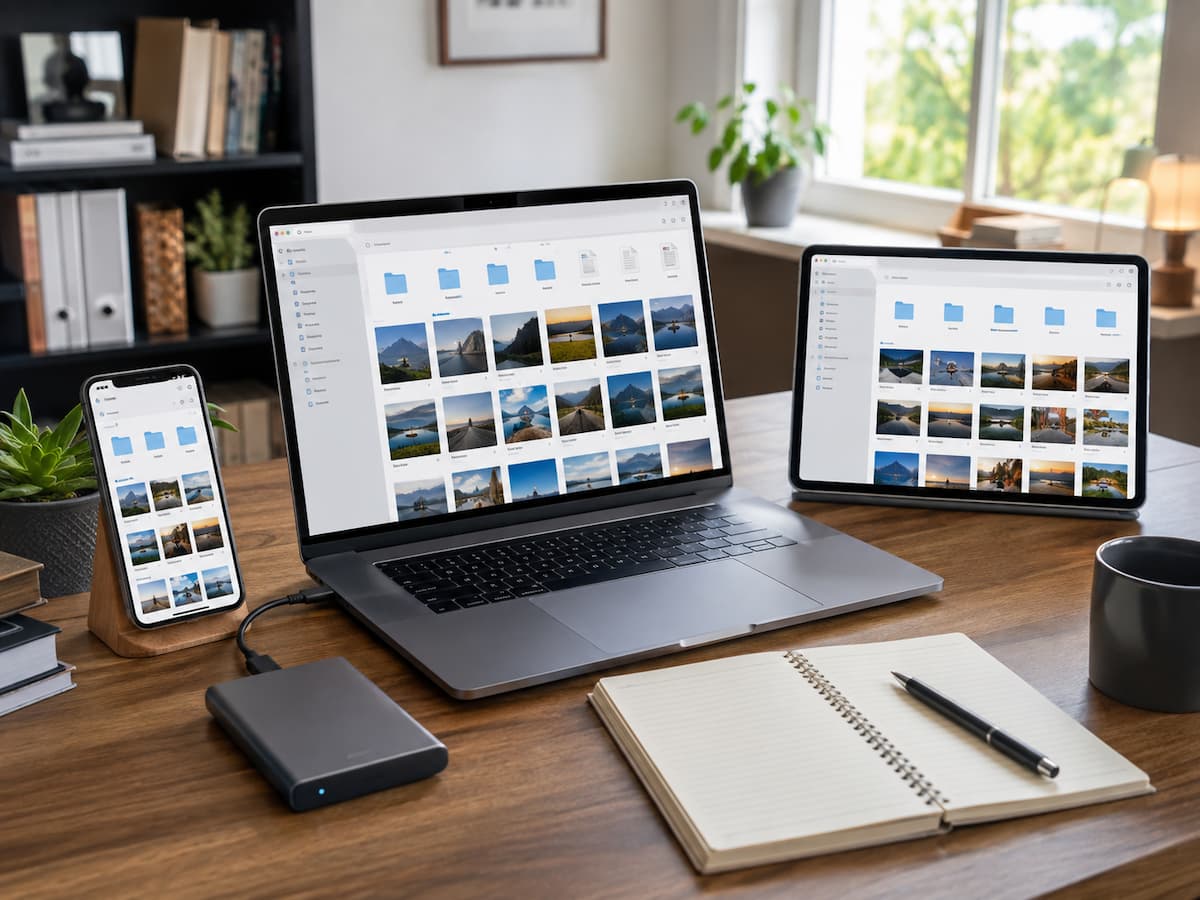
What Happens When You Put a File in the Cloud?
When you submit a document or photo to a cloud storage service, the service provider stores a copy of that data on computers in its data centers. Then you can get the stored information using an app, web browser, or software installed on a PC. The specific technology varies from provider to provider, but the idea is rather simple: your files are no longer bound to being physically on one single device. For example, if you save a document to a compatible cloud folder, you might be able to open that document later from another computer or phone once you check in to the same account. The service handles the storage infrastructure underneath; you control your account and data. This can be especially beneficial if you move between devices or wish to have essential documents available away from home. This does not mean that the file is in some undefined, ownerless realm. Behind the service are actual servers, and your access to them relies on the provider’s infrastructure, your account credentials, and an internet connection for many tasks.
Cloud Storage Is Not a Single Thing
Cloud storage is a term that encompasses a number of different capabilities, and knowing the differences will save you from many frequent blunders. Basic storage allows you to upload and download files. Synchronization implies modifications made in one area can be sent to other connected devices. Sharing lets you grant other individuals access to specific files or folders. Version history allows you to save older versions of files so you can recover from some undesired changes. Deleted-file recovery may allow you to restore something that was deleted. Photo services can also upload images from a phone automatically. These features are similar but not interchangeable. A file synchronization service does not automatically create a separate historical backup of all versions. A service that lets you restore recently deleted files may not save them forever. Before you rely on a feature, be sure you understand what the particular service genuinely provides and how long recovery information is kept.
Why is Cloud Storage Good for Daily Documents?
One of the major advantages of normal files is that they are accessible. If you only keep a household document on a desktop computer, you may find it tough to access when traveling or using another device. Storing a copy on the cloud can make it accessible from a phone, tablet, or second computer, depending on the service and file format. This is excellent for papers like receipts, appliance manuals, travel information, school materials, scanned records, and personal projects. It can also make collaboration easier if multiple people need to work with the same document. Sometimes people can work from a common area instead of emailing back and forth attachments. The convenience is not in having several copies to maintain by hand but centralized access. This can help to avoid confusion over which version is current. At the same time, be careful with shared files. Sharing a folder with someone might reveal more information than you intend.
Cloud Storage Case: Photos are very useful.
Phones make snapping images fairly straightforward; thus, photos tend to collect quickly. A device can hold years of memories, yet phones can be lost, broken, or replaced. Automatic photo uploading can produce a useful extra copy of those pictures without forcing you to remember to transfer them manually. After configuration, a phone can upload new images whenever the applicable service and connection settings allow. This can be particularly handy when you are switching to a new device, as your photo library may be available after you sign into the correct account. But automatic photo syncing shouldn’t be seen as a justification to promptly get rid of every other copy. If you change phones, accounts, storage settings, or network configurations, make sure uploads are actually finishing. For extremely essential images, a second independent copy might offer additional protection.
Syncing and Backing Up
This is one of the most important differences to get. Let’s say you have a folder on your computer that is synced with cloud storage. You delete a file from that folder, and the service may take that deletion as a cue to delete the file from the synced location elsewhere too. That behavior is good if you want your devices to be the same, really, but it can be an issue if you expect the cloud copy to be untouched. A backup is intended differently. It is supposed to retain recoverable information even if something goes wrong with the original. Some cloud services have backup functionality, file history, or deleted item recovery that may aid in these scenarios, but you will need to know the unique settings. Because anything says “cloud” doesn’t imply it’s an automated independent backup. If a file is vital, ask yourself if you need synchronization, backup, or both.
Keep Critical Files Organized Before They Become a Mess
It’s so easy to be messy on several devices by putting everything in the cloud without any organizing. A simple organizational layout can save a lot of work later. Documents can be divided into broad categories such as household, employment, education, finances, and personal projects, and images can be sorted by year or major event. You don’t need to establish a folder for each and every file. The idea is to make the storage area comprehensible enough that you can discover anything months later. Consistent filenames assist too. A file labeled insurance-document-2026. pdf is more useful than a generic scan0048.pdf. Photos currently have automatic date info, which is helpful categorization and thus may not need to be renamed manually. Select a method that you will actually stick to, not some fancy thing that turns into a pain in the ass after a few weeks.
Be Aware of Storage Constraints
Most cloud storage accounts offer a fixed amount of storage, with the amounts and costs varying by provider and plan. Photos and movies can take up storage space far faster than regular text pages. So a growing photo collection could be the major reason an account hits its limit. In that case, fresh uploads or sync may halt or work differently, depending on the service. Instead of waiting until the storage is full, check your account regularly. Some services offer tools to view the file kinds that take up the most space. You could have huge videos, duplicate files, old downloads, or forgotten folders that are using up way more space than you thought. Deleting unneeded data can help, but don’t delete something just because it seems outdated. *Be sure to move any vital stuff elsewhere before permanently removing it.
Secure Your Cloud Account
The security of cloud storage starts with the account that controls access to your files. Using a strong, unique password lowers the likelihood of password reuse, and if the provider offers it, multi-factor authentication can add another layer of defense. Be wary of sudden sign-in requests, especially if they generate a sense of urgency or drive you to an unfamiliar website. Depending on the permissions provided, someone with access to your cloud account may be able to read, alter, download, or delete personal files. Your account recovery information is also important. If you lose access to the account itself, an outdated recovery technique can make it harder for you to recover your files. Take a minute to verify the security settings of the storage provider you are using. The files may live on sophisticated infrastructure, but access to them still rests on the security of your account.
Share a Folder, Think Before You
Sharing is one of the most useful features of cloud storage, but it’s also an area where simple mistakes can reveal more information than you intended. Before sharing a folder, look closely at what is within and what permission the recipient will have. One person may want to see one document, but not necessarily a complete collection of files. Use the least privilege possible for the task, where the service has discrete permission levels. From time to time, go through old links you’ve shared, particularly ones that include personal or sensitive information in documents. Also be aware that when you share a file with someone, depending on the service and settings, they may be able to copy or download the contents of the file. Cloud sharing works because it allows access to information, so consider the sharing controls as part of your privacy choices, not a trivial technical feature.
Find Out What Happens When You Delete Something
Deletion behavior differs among services, so it’s good to understand about it before you need to. Many providers store deleted files in a trash or recycle area for a period of time before permanently wiping them out. Some have version histories to roll back to previous file states. Other people may have different restrictions for sync folders, shared files, or accounts that have run out of storage. Don’t go adjusting the folder or sync settings if you mistakenly remove an important photo until you understand what happened. First verify the service’s deleted items or recovery features. If the file was synced to many devices, try for another copy locally. The crucial thing is: “delete” doesn’t always mean instant irreversible destruction, but never think you’ll always be able to get something back.
Offline Access Could Matter More Than You Think
Cloud storage is convenient when you have an internet connection, but that convenience can fade away when you’re traveling, working in a location with spotty connectivity, or experiencing an outage. Certain services provide for the retention of chosen files on a device for offline consumption. This can be handy for documents you might know you could need disconnected. Offline copies also serve to remind us that local files are not outdated by virtue of cloud hosting. Perhaps you’d like to have a trip document, presentation, map, or crucial reference material at your fingertips, without having to rely on an internet connection when you need it most. Check how your service works with offline files. The details vary from app to app. Even if the main copy of a file is stored on the cloud, an offline copy may require local storage.
Don’t Upload Everything Without Thinking About Privacy
Cloud storage is great for personal information, but don’t let convenience override your judgment. Before you upload sensitive documents, evaluate what’s in the files, who owns the account, and whether sharing or syncing could inadvertently expose them. Particular care must be taken with documents holding financial information, identity records, private correspondence, or other sensitive material. Don’t assume what “cloud” implies. Read the provider’s current privacy and security information. Also see which apps and devices are connected to the account. An old phone or computer left logged in can become an unneeded point of access. The idea is not to skip out on cloud storage altogether. It is a deliberate choice about what you save there and who has access to it.
Use Cloud Storage in a Larger File Strategy
If you have essential files and valuable images, it is wise to consider more than one storage location. A local copy can be reached fast even if the Internet is down. A cloud copy provides access to files from multiple devices and protection against some local hardware failures. A separate backup in another location can provide an additional layer of protection if a file is unintentionally destroyed, corrupted, or otherwise compromised. It is contingent upon the value of the information and how much effort you are willing to keep. Not all screenshots need to be backed up with complex systems. Family photos, vital documents, creative work, and records that would be hard to recreate need extra attention. The helpful question to ask is not “What is the optimal backup system?” But “What if this device went away tomorrow, and could I get what is important?”
Confirm Your Setup After Major Changes to Your Device
When you upgrade phones, computers, accounts, or storage plans, it’s a good opportunity to check that your cloud configuration still functions as you anticipate. The new phone may not be signed in to the same account as the previous phone. Migrating a PC may produce a new sync folder. Your storage plan adjustment may affect the amount of data you upload. The gadget seems familiar, so it is easy to assume everything uploaded is okay, just to find out later that certain files were never uploaded. Once you’ve made a big adjustment, look over recent images, essential documents, and any folders you use regularly. Make sure synchronization is working properly, and you know which files are kept locally and which files are only available online. A few minutes of verification can save you an unpleasant surprise months down the line.
Make Cloud Storage Boring, Predictable
For everyday storage, the simplest approach is usually the best. It is the one you know well enough to trust. Use a consistent folder structure. Keep critical data identifiable. Review storage consumption from time to time. Protect the account. Know how deletion and recovery work. Check that photographs are truly being uploaded automatically. Keep a backup copy of key papers where losing the file would be a real concern. More than everything, do not mistake convenience for total protection. Cloud storage can make data easier to access, share, sync, and recover, but those benefits depend on how the service is designed and utilized. Once you know those restrictions, cloud storage becomes a lot less mysterious. That’s what it does best: it’s a pragmatic tool for managing ordinary files.
Conclusion
Cloud storage is at its best when it solves common issues without introducing new ones. It can keep photographs available when you move phones, allow access to documents from different devices, ease file sharing, and offer helpful recovery alternatives. But those benefits are much more evident when you grasp the difference between storing, syncing, and backing up. A synced folder is not a separate backup, and an automatic photo upload is only as good as the probability that the uploads will really complete. Start with an easy organizational system, secure your account, examine sharing rights, review storage space, and retain separate copies of files that would be hard to replace. You don’t have to be a storage guru. You just need to know where your key data are, how they are being duplicated or synchronized, and what would happen if something went wrong. It’s that knowledge that makes cloud storage more than just a fuzzy online service but a dependable daily tool.
FAQs
1. If my PC crashes, are my cloud files safe?
If the files did successfully upload before the machine failed, then you may still be able to view the cloud copies from another device. But this is no guaranty against any problems. Account loss, unintentional deletion, sync issues, or service-specific recovery constraints can still get in the way of access.
2. Should I keep images on my phone once I transfer them to the cloud?
It is contingent upon how much local storage you need and what recovery alternatives you have. Make sure to confirm uploads are successful before deleting local photographs and know if deleting a photo on your phone deletes it from the cloud through sync.
3. Can cloud storage substitute for an external hard drive?
It can lessen your reliance on local storage, but the two are for distinct reasons. Cloud storage allows remote access and may give synchronization or recovery options, while an external drive can provide a distinct local duplicate that doesn’t rely on an internet connection or cloud account.
4. What To Do When Your Cloud Storage Is Full?
First, determine what’s using the area. Typical offenders include big files, duplicate files, obsolete backups, and massive photo collections. If you have vital files stored elsewhere, then once you’ve confirmed they are there, you may delete superfluous data or look into a storage plan that’s right for you.
5. Is cloud storage automatically private?
Being in the cloud doesn’t mean any cloud storage system should be assumed private. Who can get to information depends on things like your settings, provider policies, connected devices, sharing permissions, and account security. Before you store or share sensitive files, review those controls.

ZapKido Editorial Team creates practical guides covering digital life, productivity, everyday technology, smart home solutions, and home organization. Our content focuses on clear explanations, useful settings, practical habits, and straightforward solutions that readers can apply in everyday situations. We aim to make technology and everyday tasks easier to understand without unnecessary complexity.