
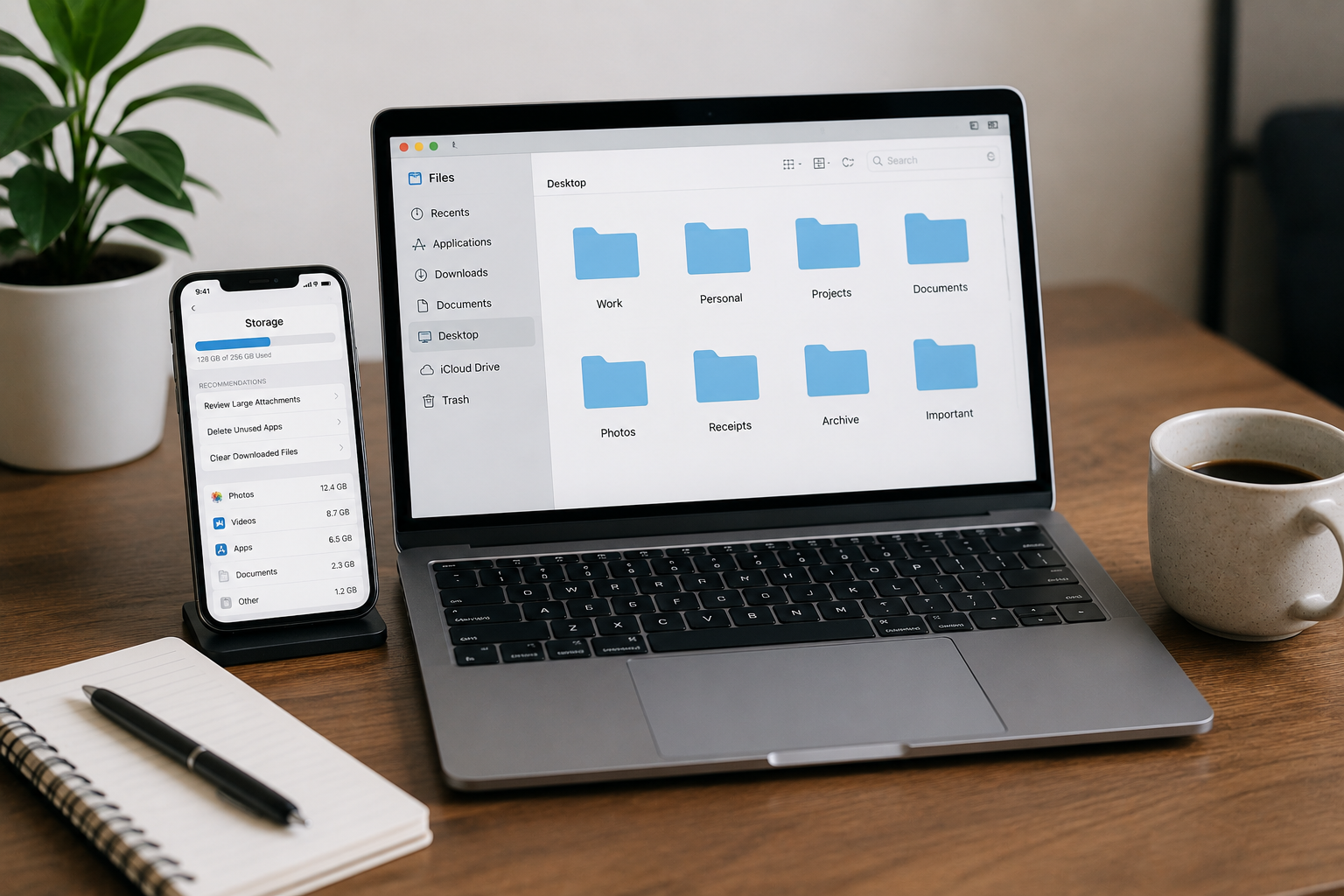
My phone had 14,847 photos. My computer desktop looked like a Jackson Pollock painting made of PDFs. My Downloads folder had files from 2019. I had 83 browser tabs open, 47 apps I never used, and a notification badge on my email app showing 2,400 unread messages.
I was not organized. I was a digital hoarder.
Then one rainy Saturday in June, I snapped. I spent the entire weekend—roughly 8 hours across two days—and when I was done, my phone had 2,900 photos. My desktop had 4 icons. My Downloads folder was empty. And for the first time in years, I could find a file in under 10 seconds.
That was 11 months ago. The system has held. Here is exactly what I did, hour by hour, with the mistakes I made so you do not have to.
Before You Touch Anything: The Golden Rule
Back up. Everything. Before you delete a single photo or drag a single file to trash.
I use Google Drive for active files and an external hard drive for the big archive. The 3-2-1 rule is simple: three copies of anything important, on two different media types, with one stored off-site. I did not follow this perfectly at first and almost lost three years of tax documents when my laptop crashed mid-cleanup. Do not be me.
Saturday Morning: The Phone Purge (3 Hours)
Hour 1: Apps
I opened my phone’s app drawer and sorted by “last used.” The results were embarrassing. I had a flight tracker from a trip I took in 2022. A meditation app I used twice. Three different photo editors. A QR code scanner that my phone’s camera already handles.
Here is my rule: if I have not opened it in 30 days, it goes. No exceptions. I deleted 47 apps. My phone immediately felt lighter—not metaphorically, literally. It ran faster. Less background processing, less storage pressure, less visual noise.
Productive Blogging recommends the same approach: go through all your apps and delete any you do not use or find especially distracting. One app for each purpose. Do not keep multiple apps that serve the same function.
What I kept:
- One browser
- One notes app
- One calendar
- One camera
- One maps app
- One music app
- One messaging app per platform I actually use
Everything else? Gone.
Hour 2: Photos
This was the hardest part. Fourteen thousand photos. Screenshots of WiFi passwords. Blurry photos of whiteboards. Twenty-seven nearly identical shots of the same sunset because I could not decide which was best.
I used a simple sorting method:
- Delete immediately: Blurry shots, duplicates, screenshots I no longer need, photos of documents I already saved elsewhere
- Keep and organize: Meaningful photos with people I care about, travel shots I will actually look at again, work references I need
- Not sure: Everything else — I put these in a “Review in 30 days” album. If I do not miss them, they go
I deleted 11,947 photos in one hour. Brutal? Yes. Liberating? Also yes. Martha Stewart’s digital declutter guide recommends deleting duplicates and unnecessary screenshots, then moving favorites to an album. I did the opposite — mass delete first, then rescue what matters. Both work. Pick your emotional tolerance.
Hour 3: Notifications and Home Screen
I turned off every notification except calls, texts, and calendar alerts. Every single one. No social media badges. No email pings. No news alerts. No app updates begging for attention.
Then I reorganized my home screen. One page only. Top row: apps I use daily. Second row: apps I use weekly. Everything else lives in an “Occasional” folder on page two. The dock has four apps: phone, messages, browser, and camera.
Productive Blogging’s guide emphasizes turning off all non-essential notifications because they drain battery and are incredibly distracting. I did not fully believe this until I tried it. The silence is strange at first. Then it becomes addictive.
Saturday Afternoon: The Computer Cleanup (3 Hours)
Hour 4: The Desktop and Downloads
My desktop had 67 icons. My Downloads folder had 312 files dating back to 2019. I created one folder called “Desktop Sort” and dumped everything in it. Then I opened Downloads and did the same—one “Downloads Sort” folder.
Here is the trick: do not sort as you go. That is how you get stuck. Dump everything into a temporary holding folder, then sort from there. Asian Efficiency’s file organization guide puts it simply: do not put files on the desktop. Your desktop should contain your trash bin and that is about it.
From the sorted folders, I used three buckets:
- Trash: Obvious junk, old installers, duplicate downloads, expired documents
- File properly: Anything with a clear home in my folder system
- Archive: Old but potentially useful — tax documents, past projects, reference material
My Downloads folder was empty in 45 minutes. My desktop had four icons: two folders (Active Projects and Inbox), one shortcut to my file system, and the trash. That is it.
Hour 5: The Folder System
This is where I got nerdy. I rebuilt my entire file structure from scratch. The old one had grown organically—which is a nice way of saying it was a mess. Folders inside folders inside folders, names like “New folder (3)” and “Stuff for later.”
The new system is stupidly simple. Three top-level folders:
📁 Work
📁 2026-Projects
📁 2025-Archive
📁 Personal
📁 Finance
📁 Health
📁 02-Reference
📁 Templates
📁 Manuals
📁 Research
📁 03-Archive
📁 2024
📁 2023
📁 Pre-2023
Numbered prefixes keep them in order. No folder is more than three levels deep. File names follow one rule: YYYY-MM-DD_Description. Always. So a file is “2026-03-15_Invoice_ClientName.pdf” not “invoice final FINAL v2.pdf”.
Bluehub’s 2026 guide recommends keeping your hierarchy to 3–4 levels maximum. If you need more, you are over-organizing. I stopped at three and have not missed the depth.
Hour 6: Browser and Bookmarks
I closed all 83 tabs. Every single one. If I needed something, I would find it again. Spoiler: I have not needed 78 of them.
Then I purged bookmarks. I had 340. Most were “read later” links I never read later. I kept 12 — tools I use daily, reference sites, and one folder called “Read This Week” with a maximum of five links. If the folder is full, I read something before adding something new.
I also removed every browser extension I did not use weekly. Kept: an ad blocker, a password manager, and a grammar checker. Everything else? Gone. Productive Blogging recommends clearing out old bookmarks and extensions, then setting up a logical bookmark system to aid productivity.
Sunday: The Deep Clean (2 Hours)
Hour 7: Email and Accounts
I had 2,400 unread emails. Not important ones. Newsletters I signed up for and never read. Promotional emails. Notifications from apps I deleted yesterday.
I used the nuclear option: select all, archive everything older than 30 days. If it was important, the person would follow up. They did not. I then unsubscribed from every newsletter using the links at the bottom of each email. Tedious? Yes. But I went from 30+ newsletters to 3 I actually read.
For accounts, I deleted any online account I had not used in a year. Old shopping accounts, abandoned social profiles, apps I tried once. Fewer accounts means fewer passwords to manage, fewer data breaches to worry about, less digital baggage.
Hour 8: The Maintenance Setup
This is the part most guides skip. Decluttering without a maintenance plan is like cleaning your house and then never taking out the trash again. It will get messy. Fast.
I set three rules:
- Weekly (5 minutes, Friday afternoon): Clear Downloads folder. Empty trash. Close stray tabs.
- Monthly (20 minutes, first Sunday): Review “Review in 30 days” photo album. Sort new files into proper folders. Check backup is working.
- Quarterly (1 hour): Audit apps — anything unused in 90 days goes. Clean email subscriptions. Review archive folder for anything that can be deleted.
Manifest.ly’s digital decluttering guide recommends a monthly review to maintain an organized digital environment, complemented by quarterly deep cleans. I started with weekly checks and gradually relaxed to monthly once the system stabilized.
What I Would Do Differently
If I were starting over, here is what I would change:
- Start with the computer, not the phone. I did phone first because it felt easier. But the computer held the important stuff—tax documents, work files, years of projects. If I had messed up the phone, I would have lost photos. If I had messed up the computer, I would have lost my livelihood. Backup first, then start with what matters most.
- Do not sort photos by hand. I spent an hour manually deleting duplicates. Google Photos, Duplicate Photos Fixer and Gemini 2 all do this automatically. Use a tool. Save your eyes and your sanity.
- Set up auto-sorting from day one. I now use a simple Hazel rule on my Mac (DropIt on Windows does the same) that automatically moves any file sitting on my desktop for more than 24 hours into my “Inbox” folder. I should have done this immediately instead of waiting two months.
Your Weekend Plan: Start Here
You do not need to do everything. Here is the minimum viable declutter—the 80/20 version that gets you most of the benefit in half the time:
| Time | Task | Target |
|---|---|---|
| 30 min | Back up phone and computer | Cloud + external drive |
| 1 hour | Delete unused apps | Remove 50% of apps |
| 1 hour | Mass delete photos | Cut photo count by 60% |
| 30 min | Turn off notifications | Only calls/texts/calendar |
| 1 hour | Clear desktop and downloads. | Desktop under 10 icons |
| 1 hour | Create simple folder system | 3 top folders, max 3 levels |
| 30 min | Close all tabs, purge bookmarks | Under 20 bookmarks kept |
| 30 min | Archive old emails, unsubscribe | Inbox under 50 items |
Sources
- Asian Efficiency. (2026). How to Organize Files & Folders: Best System for 2026. Retrieved from asianefficiency.com
- Productive Blogging. (2025). How to Do a Digital Declutter: Step-by-Step [2026]. Retrieved from productiveblogging.com
- SafeRestore. (2026). The Best Way to Organize Computer Files in 2026. Retrieved from saferestorehelp.com
- Bluehub. (2026). How to Organize Digital Files Like a Pro (2026 Guide). Retrieved from bluehub.medium.com
- Martha Stewart. (2025). How to Declutter Your Digital Life for a More Organized 2026. Retrieved from marthastewart.com
- The Elm. (2022). Organizing Files on Your Computer. Retrieved from elm.umaryland.edu
- GetSortio. (2026). Best Way to Organize Computer Files — Definition & Guide. Retrieved from getsortio.com
- Manifest.ly. (2024). Ultimate Digital Decluttering Guide for a Fresh Start in 2026. Retrieved from manifest.ly
- Box Blog. (2025). Digital File Management Best Practices. Retrieved from blog.box.com

Abdul Rahman is a digital lifestyle writer and researcher who focuses on productivity, smart technology, personal finance, and practical home improvement tips. Through ZapKido, he shares simple, beginner-friendly guides designed to help readers build smarter habits, improve daily efficiency, and live a more organized digital life.