
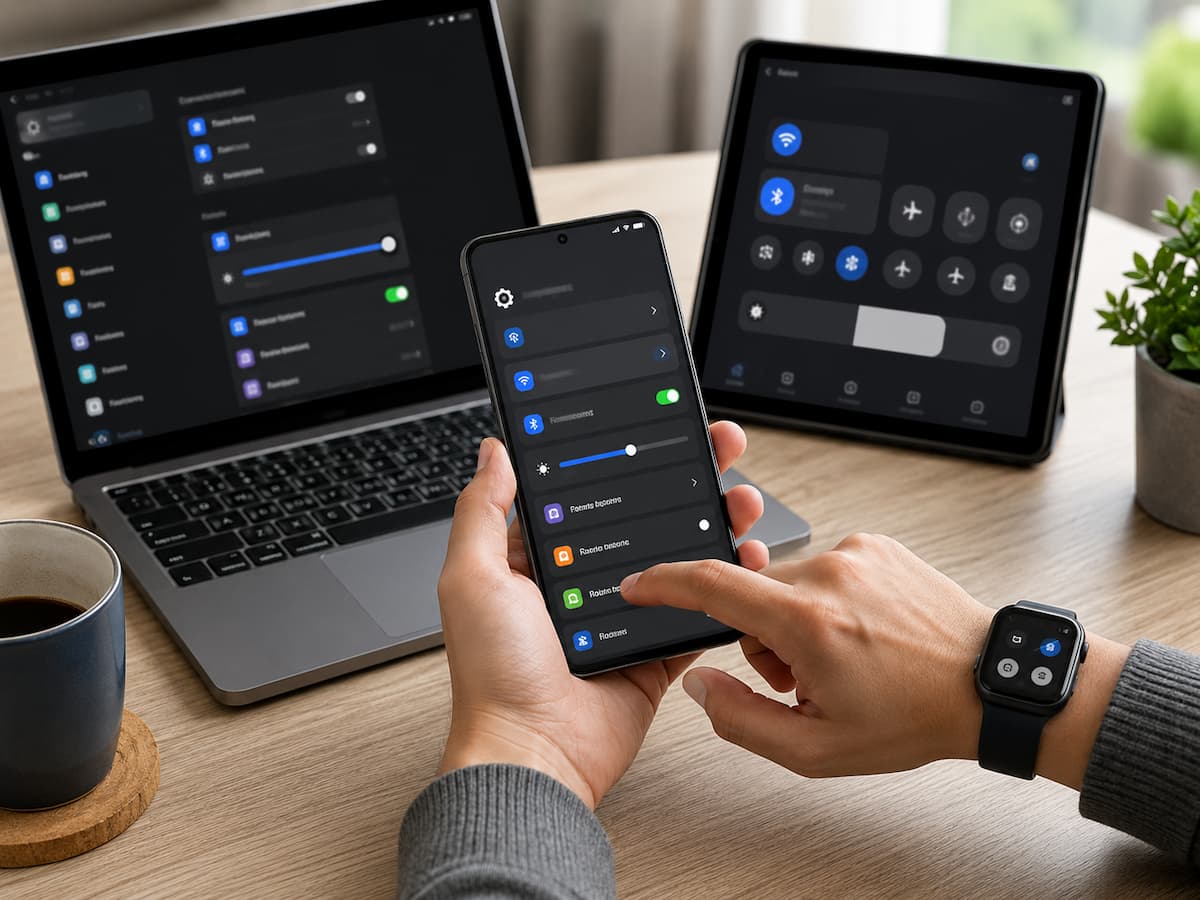
Technology often becomes frustrating for a simple reason: many of its most useful features are turned off, hidden behind menus, or left on their default settings. People may use the same phone, computer, television, or browser every day without realizing that a few small changes could remove repeated annoyances.
The useful settings are rarely the ones that look impressive in a product advertisement. They are usually quiet features that save a few seconds here, prevent an unnecessary interruption, or make information easier to find. A notification that is no longer needed, an automatic backup that was never enabled, or a screen that stays bright at night can all create unnecessary work. The trick is to think about technology from the perspective of your routine. Instead of asking what a device can do, ask what repeatedly wastes your time. The answer often points directly toward a setting worth changing.
Start With the Things That Annoy You Repeatedly
If you have to perform the same small task every day, there is a good chance your device has a setting that can reduce it. This does not mean every inconvenience can be automated, but modern operating systems are designed to remember preferences, organize information, and handle many routine actions automatically.
Consider something as ordinary as notifications. A phone that vibrates for every email, shopping promotion, social media update, and application reminder can make important messages harder to notice. Turning off unnecessary notifications does not change what the phone can do. It simply makes the device less demanding. The same idea applies elsewhere. A computer can remember frequently used passwords through a password manager, a browser can reopen useful tabs, and a phone can automatically back up photographs. These features are valuable precisely because they reduce the number of things you have to remember yourself.
Notification Settings Deserve More Attention
Notifications are designed to keep you informed, but too many of them quickly become background noise. When every application is allowed to interrupt you, genuinely important alerts compete for attention with messages that could have waited. Most phones and computers let you control notifications individually. You can usually decide which applications can send alerts, whether those alerts appear on the lock screen, and whether they produce sound or vibration.
A useful approach is to keep notifications for things that require a response and silence those that are simply informational. A banking application may need to tell you about an important transaction, while a game does not necessarily need to announce every available reward. This small adjustment can change how a device feels throughout the day. Instead of constantly reacting to whatever appears on the screen, you decide which information deserves your attention.
Automatic Updates Can Prevent Small Problems From Becoming Bigger Ones
Software updates are easy to postpone because they often arrive at inconvenient times. However, leaving devices outdated for long periods can create compatibility problems and may leave known security weaknesses unaddressed. Many devices allow updates to be installed automatically during suitable hours. Enabling this option can reduce the chance of forgetting an important update.
There is still a reason to be selective with older devices or specialized software. An update can occasionally change how an application behaves, so businesses and people who depend on specific programs may prefer to review major updates before installing them. For ordinary phones, browsers, and mainstream applications, though, automatic updating is often one of the simplest settings to enable and forget about.
Battery Settings Can Quietly Extend a Device’s Useful Day
Battery management features are often more useful than people realize. Modern phones and laptops can reduce background activity, adjust performance, or limit certain processes when power becomes low. Some devices also offer battery protection features designed to reduce long periods at maximum charge. The exact options vary between manufacturers, but the general purpose is similar: manage charging and background activity in a way that fits normal usage.
Location access is another area worth reviewing. Applications do not always need continuous access to your location. If an app only needs location information while you are using it, changing that permission can reduce unnecessary background activity. Battery settings should not be treated as a magic solution for an aging battery. A battery that has significantly deteriorated may still drain quickly. But sensible settings can help a healthy device make better use of the charge it has.
Accessibility Features Are Useful for More Than Accessibility
Accessibility settings are sometimes overlooked because people assume they are only intended for users with specific disabilities. In reality, many of these features are useful for almost anyone. Larger text can make reading more comfortable. Screen magnification can help when examining a small detail. Captions are useful when watching videos in a noisy room, while voice input can be convenient when typing is difficult or your hands are occupied.
Modern devices may also offer options for reducing motion, increasing contrast, adjusting color presentation, or making touch interactions easier. These settings are worth exploring even if you have never considered yourself an accessibility user. The purpose of a personal device is to make information and controls easier for you to use. There is no requirement to use the default interface simply because it came that way.
Autofill Can Remove Repetitive Typing
Typing the same information repeatedly is one of those small frustrations that becomes surprisingly noticeable over time. Browsers and mobile devices can often save commonly entered details and fill them in when needed. Address information, names, email addresses, and other ordinary form details can often be stored for faster checkout or registration.
Autofill should be used thoughtfully, especially on shared computers. Sensitive information should not be saved simply for convenience if other people can access the device. When configured appropriately, however, autofill can turn a long form into a much quicker task. It is particularly useful when shopping online, completing routine forms, or entering contact information into familiar services.
Keyboard Shortcuts Can Change How a Computer Feels
Keyboard shortcuts are one of the clearest examples of technology becoming easier through settings and habits rather than new hardware. Simple shortcuts for copying, pasting, searching, switching applications, undoing an action, or reopening a closed browser tab can eliminate countless mouse movements. The benefit becomes especially noticeable when you perform the same actions throughout the day.
You do not need to memorize dozens of shortcuts. Learning a handful that match your routine is enough. For example, someone who frequently works with documents may benefit from shortcuts for searching and editing text, while someone who spends most of the day in a browser may get more value from shortcuts for switching tabs and opening recently closed pages. The best shortcut is not necessarily the most advanced one. It is the one you will actually remember.
Dark Mode Is a Preference, Not a Universal Solution
Dark mode has become common across phones, computers, browsers, and applications. It changes the appearance of interfaces by using darker backgrounds and lighter text. Some people find it more comfortable in dim environments, while others prefer a traditional light interface because text appears clearer to them. There is no need to treat either choice as universally better.
Many devices allow dark mode to switch automatically according to the time of day. That can be convenient if you prefer a brighter interface during daylight and a darker one in the evening. The important thing is to choose the setting that makes your own screen easier to use. Technology settings are personal tools, not competitions.
Focus Modes Can Protect Your Time
A phone can become a source of constant interruptions simply because it is capable of receiving information from so many places. Focus modes and similar features let users create periods when only selected notifications come through. This can be useful while working, studying, driving, exercising, or simply trying to concentrate on something without checking a screen every few minutes.
Instead of manually silencing individual applications each time, a focus mode can apply a group of rules at once. Some systems allow different profiles for work, sleep, personal time, or other situations. The real advantage is predictability. Once the mode is configured properly, the device can automatically behave differently depending on what you are doing.
Browser Settings Can Make the Web Less Chaotic
Web browsers contain many small features that can make daily browsing easier. You can adjust startup behavior, default search engines, saved passwords, site permissions, pop-ups, downloads, and privacy controls. One particularly useful setting is the ability to control which websites can send notifications. Websites that you once allowed may continue sending alerts long after they are useful.
It is also worth reviewing which sites have access to your camera, microphone, location, or other browser features. Permissions should make sense for the service using them. A browser works best when it reflects your habits rather than treating every website as equally trustworthy or equally important.
Automatic Backup Is One Setting You Hope You Never Need
Backups are easy to ignore because their value becomes obvious only when something goes wrong. A damaged phone, lost laptop, failed storage drive, or accidental deletion can turn an ordinary file into something surprisingly difficult to recover. Automatic backup settings can protect important photographs, documents, and other files without requiring you to remember to make copies manually.
Cloud backup is one option, but it is not the only one. External drives and other local backup methods can also play an important role. The important distinction is between synchronization and backup. A synchronized file can sometimes have changes or deletions reflected across devices, while a proper backup is intended to provide another recoverable copy. Understanding how your particular service works is therefore important before relying on it.
Location and Permission Settings Should Be Reviewed Occasionally
Applications often request access to information that may not be necessary for their basic function. Phones typically allow you to review permissions for location, microphone, camera, contacts, photos, files, and other device features. You do not need to deny everything automatically. Some applications genuinely need particular permissions. A navigation application needs location information to provide directions, for example.
The useful habit is simply to review permissions occasionally and ask whether each one still makes sense. An application that once needed access to your location may no longer need it. Removing unnecessary permissions can make your device easier to control and reduce the amount of information applications can access.
Storage Settings Can Prevent a Phone or Computer From Becoming Cluttered
Storage problems often appear gradually. A device works perfectly for months, then suddenly warns that there is not enough free space. Storage management settings can help identify what is consuming capacity. Large videos, duplicate downloads, unused applications, cached data, and old files are common contributors. Some devices can automatically remove temporary files or suggest applications and files that you no longer use.
The important thing is not to delete everything simply because a storage tool recommends it. Review important photographs, documents, downloads, and application data before removing anything you may need later. A few minutes spent organizing storage occasionally is generally easier than dealing with a completely full device when you urgently need space.
Smart Home Settings Can Remove Repetitive Actions
When you configure schedules and routines correctly, connected lights, plugs, thermostats, and other smart-home products become much more useful. A light can turn on at a particular time. A thermostat can follow a daily schedule. A smart plug can operate a compatible appliance according to a routine. The purpose is not to automate every action in the home. Too many complicated routines can become difficult to understand and troubleshoot.
Start with something predictable. If you always turn the same lights on at roughly the same time, that is a better candidate for automation than an elaborate routine involving several unrelated devices. Good automation should feel almost invisible. When it works properly, you stop thinking about the individual steps because they happen naturally in the background.
Search and Organization Settings Are Often More Valuable Than New Apps
People frequently install another application when the real solution is already built into the device. Phones and computers have increasingly powerful search tools that can locate applications, documents, photographs, settings, messages, and other information. Learning how to use those search features can be faster than manually browsing through folders.
File naming and organization also matter. A consistent folder structure can make important documents much easier to locate later. The same principle applies to email. Filters, categories, folders, and automatic sorting can reduce the amount of manual organization required. Sometimes the smartest technology improvement is simply learning to use the tools you already have.
Review Your Settings When Your Routine Changes
A setting that was useful six months ago may not make sense today. People change jobs, replace devices, install new applications, travel, start using new services, or change how they communicate. That is why settings should occasionally be treated like a small form of digital housekeeping.
You might discover that an old application still has permission to send notifications, a backup service is no longer covering an important folder, or a focus mode is blocking messages you now need. There is no need for a complicated schedule. A quick review whenever you buy a new device, change your daily routine, or notice a repeated annoyance is usually enough.
The Most Useful Setting Is the One That Removes Work
Technology does not become useful simply because it has more options. Often, the best settings are the quiet ones that prevent unnecessary effort. Automatic backups protect files without requiring constant attention. Focus modes reduce interruptions. Permission controls give you more control over applications. Accessibility features make interfaces easier to use. Automation can remove repetitive actions, while search and organization tools help you find things faster.
None of these features needs to transform the way you use technology overnight. A few carefully chosen changes can be enough. The next time a phone, computer, browser, or smart device repeatedly frustrates you, look through its settings before searching for another application or buying new hardware. The solution may already be there, waiting behind a menu you have never opened.
Conclusion
Technology truly makes a difference by eliminating everyday annoyances, not by adding complexity. Settings such as automatic backups, notification management, focus modes, accessibility options, permission controls, and device automation can subtly improve the user experience across phones, computers, browsers, and smart devices. The key is to choose settings that suit your personal habits, rather than blindly changing everything just because an option is available.
A sensible starting point is to focus on tasks you perform repeatedly or issues that frequently interrupt you. If you consistently ignore unnecessary notifications, adjust the same display settings, search for files, or worry about whether important data is backed up, there may already be built-in features that can help. Small adjustments can save time because, once configured, they run continuously in the background.
You don’t need to fully automate every device. Simplicity is often more valuable than setting up dozens of custom rules. The best technology settings are predictable, comfortable, and easy to manage. By reviewing and adjusting a few key settings to meet your needs, technology can reduce distractions and make your daily life easier and more comfortable.
FAQs
1. Which technology settings are most useful for everyday users?
The most useful settings are usually those that reduce repetitive tasks or prevent common problems. Automatic backups, notification management, software updates, screen settings, focus modes, password management, and access controls are useful examples. The right choice depends on how you use your device, so it is best to focus on recurring issues rather than changing settings simply because they are popular.
2. Does changing notification settings really help?
Yes. If your device sends notifications for every app, it can be distracting and make it easier to miss important alerts. By reviewing notification settings, you can decide which apps require immediate attention. You can usually keep reminders for messages, appointments, security alerts, or other vital information while blocking promotions or low-priority notifications.
3. Are accessibility settings useful if I don’t have a disability?
Absolutely. Many accessibility features are simply alternative ways to interact with a device. Larger fonts make reading easier, subtitles help in noisy environments, voice input reduces the need for typing, and settings that reduce motion effects make the interface more comfortable. These options make technology more flexible, so if they improve your experience, use them.
4. Does every smart device in my home need to be connected to the internet?
Not necessarily. An internet connection can offer useful features like remote control, automation, monitoring, or notifications, but it also entails additional setup and account requirements. Devices do not improve just by connecting to the internet. If connectivity offers no real benefit, traditional devices are likely simpler and perfectly suitable.
5. How often should I check my device settings?
You do not need to check every setting regularly. A quick check of the settings is usually sufficient when you buy a new device, install a major app, change your usage habits, or experience recurring issues. It is particularly important to regularly check notifications, permissions, backups, storage, and privacy settings, as your needs change over time.

ZapKido Editorial Team creates practical guides covering digital life, productivity, everyday technology, smart home solutions, and home organization. Our content focuses on clear explanations, useful settings, practical habits, and straightforward solutions that readers can apply in everyday situations. We aim to make technology and everyday tasks easier to understand without unnecessary complexity.