
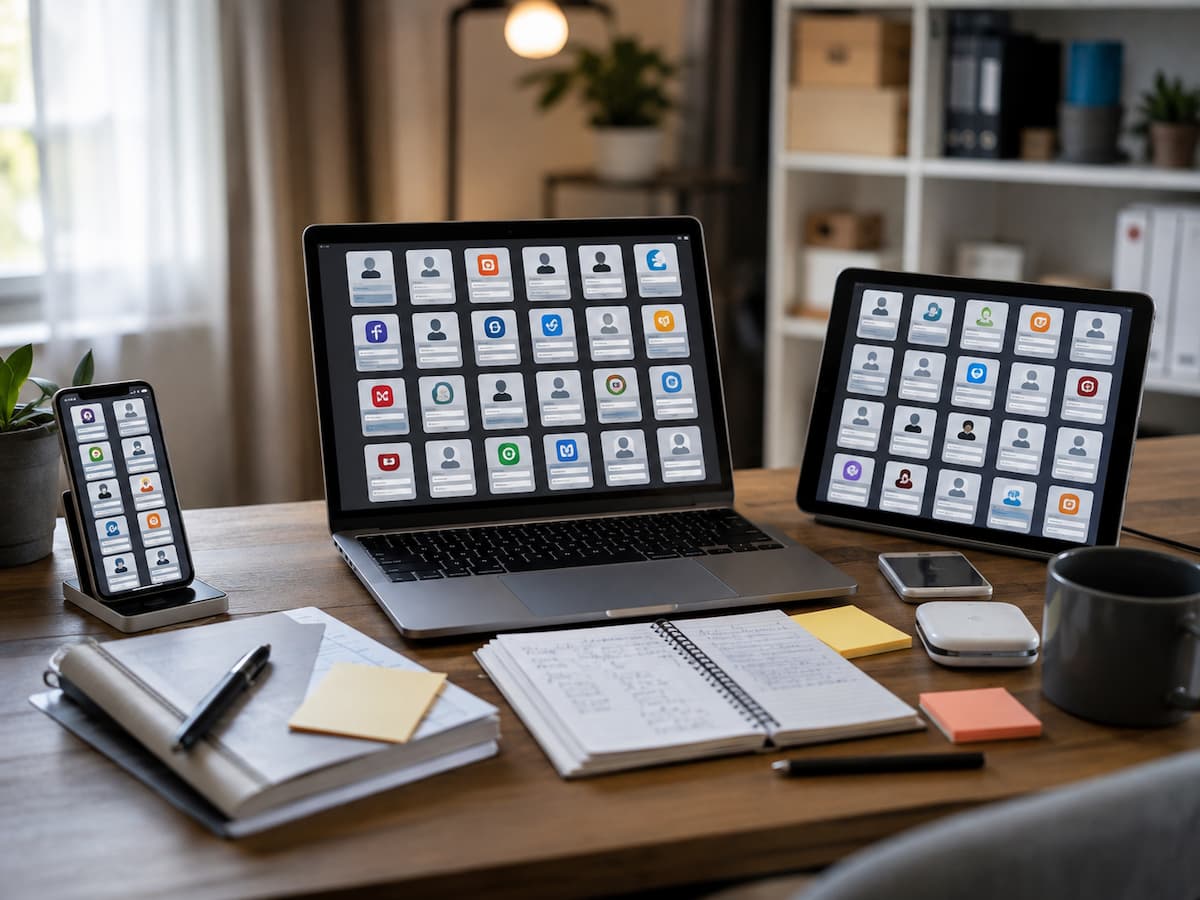
Why Online Account Overload Happens
Online account overload usually happens gradually. A service asks you to create an account before downloading a file, another requires registration before checking out, and a third offers a discount if you sign up. Months later, you may have several accounts that serve similar purposes. One cloud service might hold old files while another stores newer documents. You might have two shopping accounts because you forgot which email address you originally used. None of these situations seems serious on its own, but together they create digital clutter.
There is also a security problem. Reusing passwords across services can allow a stolen credential from one service to be tried against another. Your email account deserves special attention because it can often receive password-reset messages for other services. Financial accounts, cloud storage, primary email, and accounts containing valuable personal information therefore need more protection than an old forum account you no longer use.
Important: The goal is not to remember every password in your head. The goal is to know what accounts you have, how they are protected, and how you can recover access when something goes wrong.
Build a Complete Account Inventory
The first useful step is creating an account inventory. This does not need to be complicated. Start with the services you already know about, then use clues from your email inbox, saved passwords, payment statements, browser history, and mobile devices to find accounts you have forgotten. Search your email for phrases such as “welcome,” “verify your email,” “password reset,” “receipt,” “subscription,” and “account created.” These searches can uncover services you have not opened for years.
Create columns for the service name, account email address, purpose, account importance, payment status, recovery method, and whether multi-factor authentication is enabled. You do not need to record passwords in an ordinary spreadsheet. Passwords should remain inside an appropriate password manager or the service’s secure credential system.
| Information | Why It Matters |
|---|---|
| Service name | Helps you identify the account quickly. |
| Login email | Shows which identity is connected to the service. |
| Account purpose | Makes duplicate and unnecessary accounts easier to spot. |
| Importance | Helps you decide which accounts need stronger protection. |
| Subscription status | Helps prevent forgotten recurring charges. |
| Recovery options | Makes future account recovery easier. |
Do not try to make the inventory perfect in one sitting. A rough list is more useful than an ambitious system you never finish. Add accounts as you discover them and gradually improve the information.
Prioritize Accounts by Importance
Not every account deserves the same amount of attention. Treating a recipe website, an online bank, and your main email account as equally important makes account management unnecessarily difficult. Instead, divide accounts into broad priority levels.
| Priority | Examples | Recommended Attention |
|---|---|---|
| Critical | Primary email, banking, payment accounts, password manager | Strong unique password, MFA, current recovery information |
| Important | Cloud storage, work tools, shopping accounts with stored payment details | Unique password, MFA when available, regular review |
| Routine | Newsletters, forums, hobby services | Unique password and sensible privacy settings |
| Inactive | Old trials, unused apps, abandoned websites | Consider deleting the account |
This approach prevents a common mistake: spending an hour organizing low-value accounts while ignoring the accounts that could cause much greater problems if compromised. Start with the accounts that can unlock other services, contain sensitive information, or involve money.
Organize Passwords Without Reusing Them
When people have too many accounts, password reuse can feel like the easiest solution. One familiar password is easier to remember than dozens of different ones. Unfortunately, the convenience comes with a major weakness. If one service suffers a credential breach and a reused password becomes known, that same password may be attempted on other services.
A better system is to give every important account its own password. You do not need to memorize everyone. A password manager can generate and store unique credentials, so you only need to remember the information needed to unlock it.
For passwords you do need to remember, longer passphrases can be easier to handle than short, complicated strings. Avoid predictable personal information such as birthdays, names, addresses, favorite teams, or common phrases. Also avoid creating a “base password” and adding a different number to it for every website. If someone discovers the pattern, they can make it easier to attack several accounts.
Use a Password Manager as a Central Hub
A password manager can turn a large collection of accounts into a much more manageable system. Instead of keeping passwords in browser notes, text files, paper notebooks, or memory, you can store credentials in a protected vault. Many password managers can also generate random passwords, fill login forms, and alert you when credentials need attention.
The password manager itself becomes one of your most important accounts, so it deserves careful setup. Use a strong master passphrase and enable multi-factor authentication if the service supports it. Make sure you understand the account recovery process before depending on the manager for every login.
It is also worth checking what the manager actually stores. Some people keep passwords, secure notes, recovery codes, payment information, and identity documents in one vault. That can be convenient, but it also means the vault contains valuable information. Keep the amount of sensitive information there appropriate to your needs and understand the provider’s security and recovery features.
What to look for in a password manager
- Unique password generation
- Strong encryption and secure vault protection
- Multi-factor authentication support
- Reliable access across the devices you actually use
- Clear recovery procedures
- Ability to export or manage your data appropriately
Keep Recovery Information Up to Date
Account security is not only about preventing unauthorized access. You also need to make sure you can prove ownership when you lose access. Recovery information can become outdated surprisingly quickly. You may change phone numbers, stop using an old email address, replace a device, or lose access to a recovery method without realizing that several services still depend on it.
Review recovery options for your most important accounts. Check recovery email addresses, phone numbers, authentication devices, backup codes, and trusted devices. If a service gives you recovery codes, store them somewhere protected and accessible when you actually need them.
Your primary email account deserves special attention because losing it can make recovery of other accounts much harder. A person who controls an email inbox may be able to receive password-reset messages for other services. Protect the email account before spending time optimizing less important accounts. Never leave an old phone number or email address as your only recovery method if you can no longer access it.
Strengthen Important Accounts With MFA
Multi-factor authentication, often called MFA or two-factor authentication, adds another authentication factor beyond the password. Depending on the service, this might involve an authenticator app, security key, biometric method, or verification code. The basic idea is that knowing the password alone should not be enough to access the account.
MFA is especially useful for accounts that contain financial information, sensitive files, personal data, or access to other services. Start with your primary email, financial accounts, password manager, cloud storage, and major work accounts. Then expand to other services when practical.
| Authentication Method | General Consideration |
|---|---|
| Authenticator app | Convenient and generally stronger than relying solely on a password. |
| Security key | Provides strong protection and is useful for high-value accounts. |
| Text message code | Better than password-only access, but it has limitations. |
| Biometric unlock | Convenient when supported as part of an appropriate authentication system. |
Do not enable MFA and then forget about recovery. If you lose your phone or authentication device, you need a legitimate way back into the account. Set up available recovery options during the original security setup rather than waiting for an emergency.
Control Subscriptions and Paid Services
Digital clutter is not limited to login credentials. Recurring subscriptions can quietly become a second form of account overload. A service might offer a free trial, discounted first month, annual plan, or automatic renewal. If you no longer use it, the account can remain active even though it has no useful purpose.
As you review accounts, note whether each service incurs a cost and when it renews. Check bank and card statements for recurring digital charges that you may have forgotten. If you discover a service you no longer need, cancel the subscription according to the provider’s instructions and keep confirmation details until you are confident the recurring charge has stopped. Do not assume that deleting an app cancels an account or subscription. Mobile applications, website accounts, and payment subscriptions can be separate systems. Please check the actual billing source before considering the matter resolved.
Review Connected Apps and Sign-In Methods
Many services let you sign in using an existing account from another provider. You may also have granted an application permission to access files, contacts, calendars, or other information. Over time, these connections accumulate.
Review the connected applications and third-party access settings on your major identity accounts. If you see an old service you no longer recognize or use, investigate it before revoking access. Some connections are harmless, while others may still have permissions that are no longer necessary.
There is also an important distinction between deleting an application’s access and deleting the application’s account. Removing access can prevent future access through a connected identity, but it may not erase the data stored by the third-party service. If you want your information removed, seek the service’s own account deletion or data-management process.
Deal With Unused and Duplicate Accounts
Once your inventory is complete, look for accounts that no longer serve a purpose. You may discover three accounts for the same type of service, old trials, abandoned communities, duplicate cloud accounts, or websites you joined years ago.
Before deleting an account, check whether it contains anything you need. Download important files, save receipts, transfer information where appropriate, and cancel active subscriptions. If the account connects to another service, check those connections first.
Deletion is not always the right answer. Some accounts may contain purchase histories, licenses, documents, or information that you may need later. If you are uncertain, please mark the account as inactive and review it again instead of deleting it impulsively.
Create a Simple Account Maintenance Routine
The best account-management system is one you can maintain. You do not need to audit every account each week. A small recurring review is enough for most people. Once you finish your initial cleanup, periodically review important accounts and update the inventory whenever you create or close a service.
A useful routine might involve reviewing security alerts, checking recovery information, looking at active subscriptions, removing unnecessary connected applications, and closing accounts you no longer need. You can also use the security-checkup features provided by major account platforms to identify obvious problems.
A practical maintenance checklist
- Review important account security alerts.
- Confirm that your recovery information is still current.
- Check important accounts for MFA availability.
- Review recurring subscriptions.
- Remove access for unused third-party applications.
- Update your account inventory when services change.
- Close unnecessary accounts when appropriate.
The key is consistency rather than frequency. A simple system that you follow twice a year is more useful than a complicated security routine that you abandon after two weeks.
Troubleshoot Common Account Management Problems
Account cleanup rarely goes perfectly. One common problem is discovering that you cannot remember which email address you used. Search old messages for registration confirmations, receipts, or security notifications. Another problem is finding a service that still charges you even though you deleted the app. In that case, investigate the actual billing account rather than relying on the device where the application was installed.
You may also find an old account that you cannot access because its recovery email or phone number is outdated. Use the provider’s official account-recovery process and avoid third-party services that claim they can bypass account protections. If an account contains sensitive information, be particularly careful about entering credentials into unfamiliar pages.
Another frequent mistake is cleaning up too aggressively. People sometimes delete an account before checking whether it holds files, licenses, purchase records, or access to another service. A short review before deletion can prevent a frustrating recovery problem later.
| Problem | First Step | What to Avoid |
|---|---|---|
| Forgotten login email | Search your old account and billing emails. | Guessing credentials repeatedly. |
| Lost recovery method | Use the provider’s official recovery process. | Unverified recovery services. |
| Unknown subscription | Check the actual billing source. | Assuming deleting the app stops payment. |
| Duplicate accounts | Compare the data and account purpose first. | Deleting one without checking its contents. |
Conclusion
Managing many online accounts does not require remembering dozens of passwords or constantly checking every service. The real solution is organization. Build an inventory so you know what exists, prioritize accounts according to their importance, use unique passwords, protect critical services with multi-factor authentication, and keep recovery information current.
From there, reduce clutter by reviewing subscriptions, connected applications, duplicate accounts, and services you no longer use. Keep your system simple enough to maintain. When you create a new account, add it to your system instead of letting it disappear into the growing pile of digital services. A manageable digital life is not about having as few accounts as possible. It is about knowing what you have, understanding why you have it, and being ready to protect or close it when circumstances change.
FAQs
1. How many online accounts should a person have?
There is no ideal number. Modern life may require many accounts for work, communication, shopping, banking, entertainment, education, and other services. The important issue is whether you know which accounts exist and can manage them safely. Having 100 well-organized accounts is not automatically worse than having 20 poorly managed accounts. Focus on removing unnecessary duplicates, protecting important services, and keeping recovery information current.
2. Should I delete old online accounts?
If an account has no useful purpose and you have checked that it contains no important data, deletion can reduce digital clutter. However, do not delete accounts simply because they are old. Check subscriptions, stored files, purchase histories, licenses, and connected services first. Some accounts may be useful for retrieving records later. When deletion is appropriate, use the service’s official account management or deletion process.
3. Is it safe to store all passwords in one password manager?
A reputable password manager can make it much easier to use unique passwords across many services. However, the password manager becomes a high-value account, so it needs strong protection. Use a strong master passphrase, enable available multi-factor authentication, understand recovery procedures, and keep your devices protected. The goal is not to eliminate risk completely but to avoid the much larger problems created by password reuse and scattered credentials.
4. What accounts should I secure first?
Start with accounts that could affect many other accounts or contain sensitive information. Your primary email, password manager, financial accounts, cloud storage, and major work accounts are usually good starting points. Protecting these accounts first gives you a stronger foundation. Afterward, work through shopping, social, entertainment, education, and other services according to their importance.
5. Does deleting an app delete the online account?
Usually, you should not assume that it does. Removing an app from a phone generally removes the application from that device, but not necessarily the account and data stored on the provider’s servers. Subscriptions can also be managed separately through an app store or billing platform. If your goal is to close the account or remove stored information, use the service’s account settings or official deletion process.
References
- National Institute of Standards and Technology (NIST), SP 800-63-4: Digital Identity Guidelines.
- National Institute of Standards and Technology (NIST), SP 800-63B-4: Digital Identity Guidelines — Authentication and Authenticator Management.
- Federal Trade Commission (FTC), Use Two-Factor Authentication To Protect Your Accounts.
- Federal Trade Commission (FTC), Creating Strong Passwords and Other Ways To Protect Your Accounts.
- Google Account Help, Make your account more secure.

ZapKido Editorial Team creates practical guides covering digital life, productivity, everyday technology, smart home solutions, and home organization. Our content focuses on clear explanations, useful settings, practical habits, and straightforward solutions that readers can apply in everyday situations. We aim to make technology and everyday tasks easier to understand without unnecessary complexity.