
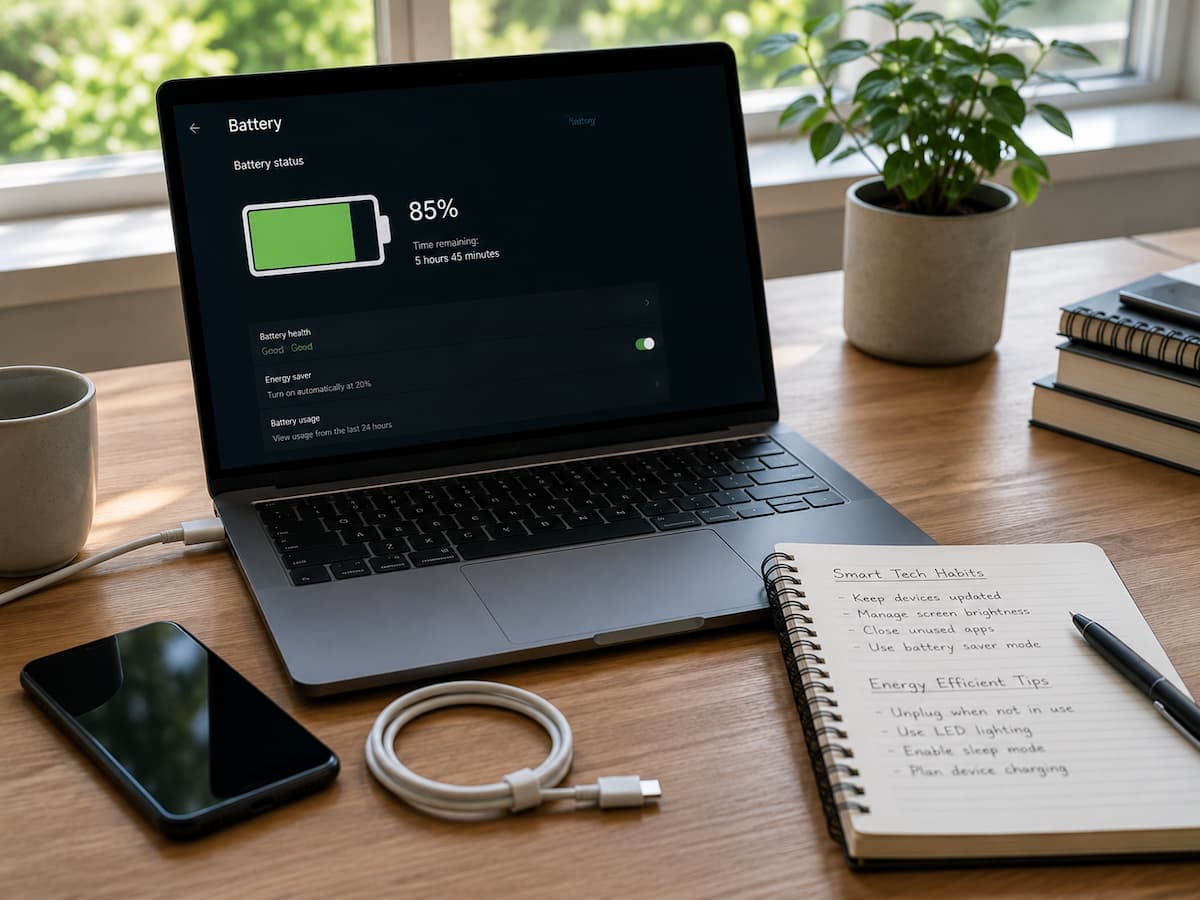
Most people don’t realize how much their laptop usage habits affect battery life. The rate at which the battery drains depends on many factors, including screen brightness, background applications, wireless connectivity, heat generation, and even the number of open browser tabs.
The encouraging news is that you don’t need to buy anything extra to significantly improve battery life. By making a few simple adjustments to your charging, usage, and maintenance habits, you can extend your laptop’s battery life. This guide helps you understand why your battery drains and offers tips for developing habits that will gradually extend its life.
The Battery Problem Usually Starts Unnoticed
Laptop batteries seldom die suddenly. Usually, the decline is subtle. You may notice your laptop lasts 30 minutes shorter initially. Later, you may charge it for previously successful jobs. This gradual change makes battery problems difficult to spot because nothing obviously breaks. Small factors gradually pile up. A few additional background apps, slightly higher screen brightness, more intensive software updates, and more heat exposure can accelerate battery drain.
People misinterpret battery life by setting high expectations for their laptop. Manufacturers frequently measure battery estimates under controlled conditions. Real-world use differs. Different power demands arise from streaming videos, video meetings, editing documents, visiting websites, and running several applications. The first step to increasing battery life is to realize that no single feature controls battery performance. It’s the product of daily tiny decisions.
Why There Is No Perfect Battery Setting
Many people hunt for a hidden feature to instantly double laptop battery life. They want a one-stop setting, app, or shortcut. Unfortunately, real battery improvement rarely does that. Laptops continually balance performance and power. Opening a demanding program, increasing brightness, connecting external devices, or running numerous tasks requires more energy. Reduce battery usage by detecting areas where your laptop is overworking.
Consider battery life like household power. Turning off one light helps, but improving numerous habits saves the most. The same goes for laptops. Dimming brightness, removing unnecessary apps, controlling wireless connections, and limiting overheating may help. Together, they can make a difference. This method avoids the common mistake of making the laptop uncomfortable to preserve battery. Some users disable useful features, overdisable performance, or avoid typical activities. Good battery management should make your laptop more efficient, not irritating.
A Balanced Approach Works Better
| Change | Possible Benefit | User Impact |
|---|---|---|
| Reduce unnecessary background apps | Lower power usage | Usually unnoticeable |
| Adjust brightness | Moderate battery improvement | Small visual change |
| Improve cooling | Better efficiency | Improves reliability |
| Manage wireless connections | Reduces unnecessary activity | Minimal impact |
Your Screen Is Often the Biggest Power Consumer
One of the easiest battery improvements is also one of the most overlooked: managing your display. The screen is one of the most power-hungry parts of a laptop, especially on brighter settings. Many users keep brightness higher than necessary because they adjust it once and forget about it. A bright display may look better, but it also requires more energy throughout your entire session. Reducing brightness slightly can extend battery life without changing how you use your laptop.
The difference becomes more noticeable when combined with other display settings. A shorter screen timeout prevents the laptop from wasting energy when you step away. Dark modes may also help on certain display technologies, although the effect depends on the type of screen your laptop uses. The goal is not to make your screen uncomfortable. The goal is finding the lowest brightness level that still allows comfortable reading. Many people discover they can reduce brightness more than expected once their eyes adjust. Lower your brightness by one or two levels for a day. If your eyes adjust comfortably, you have found an easy batteffortlessimprovement.
Hidden Background Activity That Drains Battery
Your laptop may seem idle while several programs keep running in the background. Applications check for updates, cloud services synchronize files, browsers refresh pages, and notifications arrive constantly. Each task may seem insignificant, but together they consume processing power and energy. This is why a laptop can lose battery even when you are not actively doing anything demanding. The computer is still performing tasks you may not see.
Modern operating systems provide tools that show which applications are using the most resources. Checking these occasionally can reveal surprising results. A program you opened once weeks ago may still be running every time you start your laptop.
Common Battery Drainers
- Too many browser tabs running for long periods.
- Cloud synchronization when it is not needed.
- Unused applications staying active.
- Automatic updates running at inconvenient times.
- Multiple communication apps sending notifications constantly.
This does not mean you should close everything. The purpose is awareness. Some background activity is useful and necessary. The goal is reducing unnecessary work, not disabling important features.
Understanding Better Charging Habits
Battery charging is one of the most misunderstood parts of laptop care. Many users still follow old advice that may not apply to modern laptop batteries. They worry about leaving the charger connected, charging overnight, or using the laptop while plugged in. Modern lithium-based batteries are designed with protection systems that manage charging safely. However, temperature and long-term usage patterns still matter. Constant exposure to high heat and repeatedly stressing the battery can affect its lifespan over time.
A healthier approach is avoiding unnecessary extremes. You do not need to panic every time your battery percentage changes. Instead, focus on keeping your laptop in a comfortable environment and following the charging recommendations provided by the manufacturer. If your laptop includes battery health settings, they can be useful. These features are designed to manage charging behavior automatically and may help preserve battery condition over longer periods.
Why Heat Is the Hidden Enemy of Laptop Batteries
Most people think about battery life only when they look at the percentage remaining on the screen. However, temperature plays a major role in how well a laptop battery performs. A battery operating in a cool environment and a battery constantly exposed to heat do not experience the same conditions. Heat usually appears when your laptop is working hard, but it can also happen because of simple habits. Using a laptop on a soft bed, covering ventilation openings, leaving it inside a hot car, or blocking airflow on a crowded desk can make the internal temperature rise.
When a laptop becomes too warm, the system may reduce performance to protect its components. This process can make the computer feel slower while also increasing fan activity and power consumption. Over time, repeated heat exposure can contribute to faster battery aging. You do not need expensive cooling equipment to manage temperature. Small changes often help. Place the laptop on a hard surface when possible, keep air vents clear, avoid direct sunlight, and allow the device to cool down after demanding tasks.
Simple Ways to Reduce Heat
- Keep ventilation areas uncovered.
- Avoid using the laptop on blankets or pillows.
- Close demanding applications when they are no longer needed.
- Do not leave the laptop inside a hot vehicle.
- Give the device time to cool after heavy workloads.
Battery Tip: Protecting your laptop from heat is not only about comfort. It also helps maintain more consistent performance over time.
Small Daily Changes That Create Longer Battery Life
The biggest battery improvements usually do not come from one dramatic adjustment. They come from making small decisions every day. A person who develops efficient habits often gets better results than someone who makes a major change once and forgets about it. For example, consider how you finish a work session. Many people simply close their laptop and leave multiple programs, browser tabs, and documents running. The next time they open it, everything continues from the previous session. This feels convenient, but it can also increase background activity and battery usage.
A few seconds spent closing unnecessary programs, disconnecting devices you are no longer using, and adjusting settings before leaving can make a difference over time. The same idea applies when traveling. If you know you will be away from a charger, preparing your laptop before leaving gives you more flexibility. Download important files beforehand, reduce unnecessary connections, and avoid starting demanding tasks when battery power is limited.
When Battery Drain Is Actually a Hardware Problem
Sometimes users follow every battery-saving recommendation and still notice poor performance. When that happens, the problem may not be your settings or habits. The battery itself may simply be reaching the end of its useful life. Laptop batteries are consumable components. Like other rechargeable batteries, their ability to hold energy gradually decreases after repeated charging cycles. This phenomenon is normal and happens even when a device is used carefully.
The challenge is recognizing the difference between normal aging and a serious problem. A slightly shorter battery life after several years is expected. However, sudden shutdowns, inaccurate battery percentages, swelling, or unusual heat may indicate a condition that requires attention.
Possible Signs of Battery Aging
- The battery percentage drops unusually quickly.
- The laptop shuts down even when the battery indicator shows remaining power.
- The device only works reliably when connected to the charger.
- The battery capacity has significantly decreased compared with when it was new.
- The laptop becomes unusually warm around the battery area.
If you notice these signs, software changes may provide only limited improvement because the physical condition of the battery has changed.
Battery Habits to Avoid
- Using unofficial chargers that do not match your laptop requirements.
- Blocking ventilation while using the laptop.
- Leaving unnecessary applications running all day.
- Ignoring operating system updates.
- Keeping the laptop exposed to extreme temperatures.
- Believing every battery-saving claim online.
The best battery practices are usually simple, practical, and supported by how modern laptops actually work.
Conclusion
Extending laptop battery life does not require expensive accessories or complicated software. In most cases, better results come from understanding what consumes power and making small improvements to daily habits.
Managing screen brightness, reducing unnecessary background activity, protecting your laptop from heat, and developing smarter charging habits can help you get more useful time from every charge. These changes may seem simple, but together they create a more efficient and reliable laptop experience. The most important lesson is that battery care is not a one-time fix. It is a collection of small decisions repeated over time. By paying attention to how your laptop works and treating the battery with care, you can improve performance and extend the useful life of your device without buying extra tools.
References
- Microsoft Support – https://support.microsoft.com/
- Apple Battery and Performance Information – https://support.apple.com/
- Intel Technology Resources – https://www.intel.com/
- Energy.gov Consumer Energy Saving Resources – https://www.energy.gov/
- National Institute of Standards and Technology (NIST) – https://www.nist.gov/
- Consumer Reports Technology Guides – https://www.consumerreports.org/

ZapKido Editorial Team creates practical guides covering digital life, productivity, everyday technology, smart home solutions, and home organization. Our content focuses on clear explanations, useful settings, practical habits, and straightforward solutions that readers can apply in everyday situations. We aim to make technology and everyday tasks easier to understand without unnecessary complexity.