
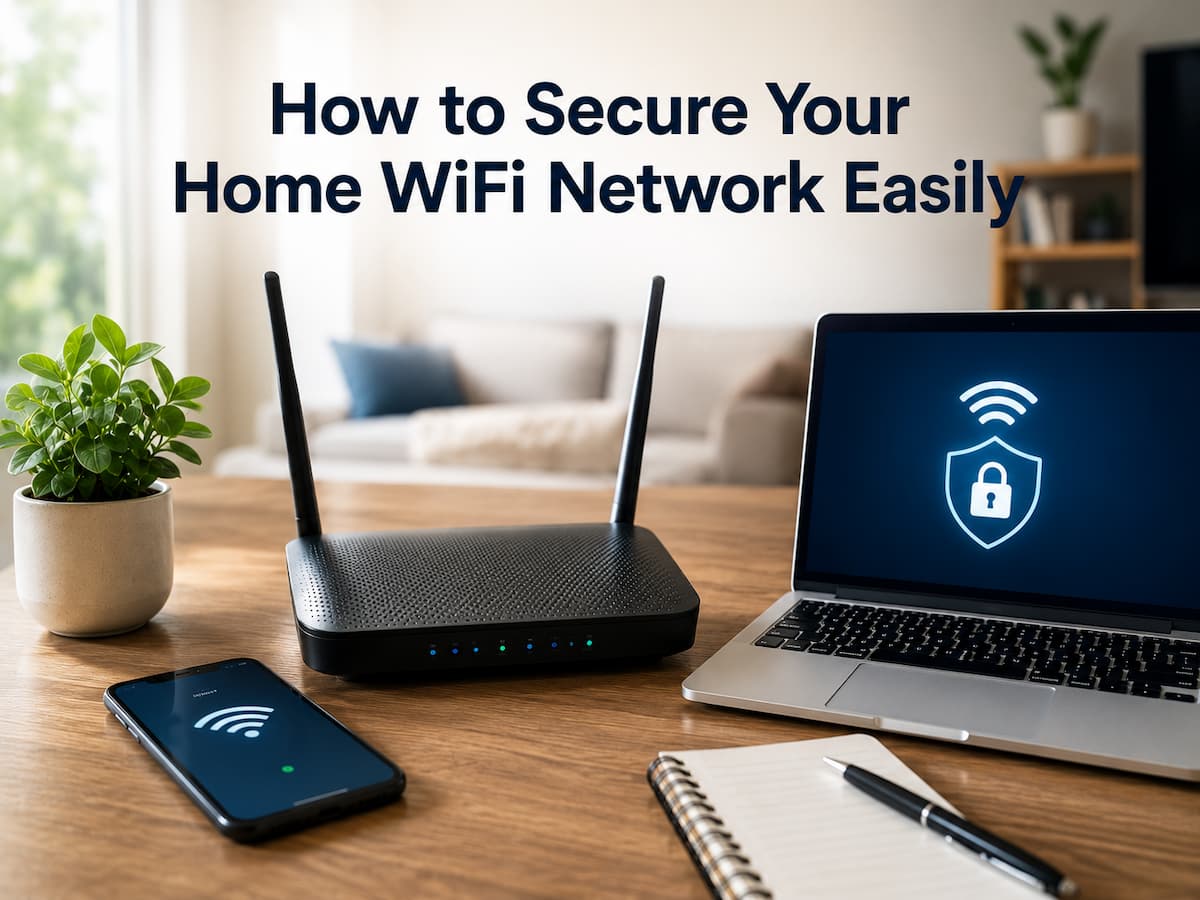
A few years back, my internet speed abruptly dropped to an unbearable crawl. Initially, I held my laptop, the weather, and my service provider responsible. On the other hand, I logged into my router dashboard one night and saw some strange gadgets linked to my system. That was a revelation. In addition to being unsafe, my house Wi-Fi was painfully slow. Easy tweaks can greatly improve home Wi-Fi security, as I’ve discovered since then. If you aren’t technically savvy, don’t worry—this article will teach you all you need to know to safely protect your home Wi-Fi network.
The Importance of Wi-Fi Security for Your Home Network
All of your electronic devices, from smartphones to smart TVs to cameras to doorbells, can be connected to your Wi-Fi network. Without a secure network, unauthorized users could potentially access your devices, steal your personal information, or cause your internet speed to decrease. Although many people believe that only enterprises are vulnerable to cyber threats, they often overlook the fact that home networks are frequently unprotected and hence easy prey. Protecting your privacy, data, and digital life is the real reason to secure your Wi-Fi, not paranoia.
Understanding How Wi-Fi Networks Get Hacked
Before fixing security, it helps to understand the risks. Most home Wi-Fi networks fall victim to simple mistakes. Common vulnerabilities include:
- Default router passwords
- Weak Wi-Fi passwords
- Outdated router software
- Unsecured guest access
- Too many unknown connected devices
1. Change the Default Router Login Credentials Immediately
Every router comes with a default admin username and password. Hackers know these defaults and use them to access networks easily. When setting up your router:
- Log into the router dashboard (usually via a browser)
- Change the admin username and password
- Use a strong and unique password
A strong router password should:
- Be at least 12 characters
- Include numbers, symbols, and uppercase letters
- Be different from your Wi-Fi password
This single step removes one of the biggest security risks.
2. Create a Strong and Unique Wi-Fi Password
Your Wi-Fi password protects the gateway to your entire network. Avoid simple passwords like “12345678” or “password123.” A strong Wi-Fi password should:
- Be long and complex
- Avoid personal information
- Not be reused on other accounts
Example of a strong password:
BlueSky!Coffee#2026
Long passwords are much harder to crack.
3. Enable WPA3 or WPA2 Encryption
Encryption protects data traveling between your devices and router. Without encryption, hackers can intercept your traffic. Check your router settings and enable the following:
- WPA3 (best option)
- WPA2 (if WPA3 isn’t available)
Avoid outdated options like the following:
- WEP
- WPA (without 2)
Modern encryption is essential for Wi-Fi security.
4. Change Your Wi-Fi Network Name (SSID)
Your network name may reveal your router brand or model, making it easier for attackers to target vulnerabilities. Instead of:
TP-Link_2.4GHz
Use something neutral, like:
GreenHouseNetwork
Avoid personal details such as your name or address.
5. Keep Router Firmware Updated
Your router runs software called firmware. Manufacturers release updates to fix security vulnerabilities. Make a habit of:
- Checking for updates every few months
- Enabling automatic updates if available
Updating firmware is like installing security patches for your home network.
6. Turn Off Remote Router Access
Many routers allow remote access from the internet. While convenient, this feature can create security risks. Unless you truly need it:
- Disable remote management
- Keep router access local only
This prevents outsiders from accessing your router settings.
7. Enable the Router Firewall
Most routers include a built-in firewall that blocks suspicious traffic. Make sure your router firewall is:
- Enabled
- Set to default protection mode
This feature acts as the first line of defense against external threats.
8. Create a Separate Guest Wi-Fi Network
Sharing your main Wi-Fi password with guests can expose your devices. Instead, create a guest network. Benefits of a guest network:
- Keeps your main devices isolated
- Limits access to personal files
- Makes password sharing safe
Please consider using a simple password for guests and updating it regularly.
9. Remove Unknown Connected Devices
Check your router dashboard regularly for connected devices. If you see any unknown devices, please disconnect them as soon as possible. Common devices you should recognize:
- Phones
- Laptops
- Smart TVs
- Tablets
- Smart home devices
If you notice anything suspicious, please change your Wi-Fi password right away.
10. Disable WPS for Better Security
WPS (Wi-Fi Protected Setup) allows devices to connect quickly using a PIN. Unfortunately, this feature is vulnerable to attacks. For better security:
- Turn off WPS in router settings
Manual password entry is safer.
11. Use MAC Address Filtering (Optional Advanced Step)
Each device has a unique MAC address. Some routers allow you to approve only specific devices. This adds an extra security layer, but it requires manual setup whenever you add new devices. Think of it as a digital guest list for your network.
12. Position Your Router Strategically
Wi-Fi signals extend beyond your home walls. If your router is near windows or outside walls, strangers nearby may detect your network. Place your router.
- Near the center of your home
- Away from windows
- Elevated for better coverage
This limits signal exposure outside your home.
13. Secure Your Smart Home Devices
Smart home devices are convenient but often poorly secured. Protect them by:
- Changing default passwords
- Updating device firmware
- Connecting them to a guest network
Smart devices should never be left on default settings.
14. Monitor Your Network Regularly
Security isn’t a one-time task. Check your network monthly. Monthly checklist:
- Review connected devices
- Check for firmware updates
- Update passwords annually
Small habits prevent big problems.
15. Use a VPN for Extra Protection
A VPN encrypts your internet traffic, adding another security layer. Benefits:
- Protects data on public Wi-Fi
- Enhances privacy
- Prevents tracking
While optional, it’s a valuable upgrade for privacy.
16. Recognize Signs Your Wi-Fi May Be Compromised
Warning signs include:
- Sudden slow internet speeds
- Unknown devices connected
- Router settings changed unexpectedly
- Frequent disconnections
If you notice these signs, change passwords and restart your router immediately.
17. Teach Family Members Safe Wi-Fi Habits
Your network is only as secure as its users. Teach family members to:
- Avoid suspicious downloads
- Use strong passwords
- Avoid sharing Wi-Fi passwords publicly
Security is a team effort.
Conclusion
No special technical knowledge is necessary to secure your home Wi-Fi network. You may greatly enhance the security of your network by altering default settings, upgrading firmware, employing robust passwords, and keeping tabs on linked devices. Following these straightforward actions can keep your personal information safe, speed up your internet connection, and alleviate any concerns you may have about the security of your digital life. Take immediate action by following these steps and transform your home Wi-Fi into a robust and protected network.
FAQs
1. When was the last time you changed your Wi-Fi password?
At least once a year, or more frequently if you see suspicious activity, is the recommended interval.
2. Is it essential to have WPA3?
If it’s available, sure. Its encryption is more robust than that of previous security systems.
3. Is it necessary to enable night mode on my router?
It’s not required, but it can help save energy and lessen exposure.
4. Where should I install my router to ensure its safety?
Place it towards the middle of your house, far from any windows, to minimize signal interference.
5. Is it easy for my neighbors to hack my Wi-Fi?
That might happen if your network doesn’t utilize strong passwords or is vulnerable. Such an attack is prevented by robust security measures.

ZapKido Editorial Team creates practical guides covering digital life, productivity, everyday technology, smart home solutions, and home organization. Our content focuses on clear explanations, useful settings, practical habits, and straightforward solutions that readers can apply in everyday situations. We aim to make technology and everyday tasks easier to understand without unnecessary complexity.